
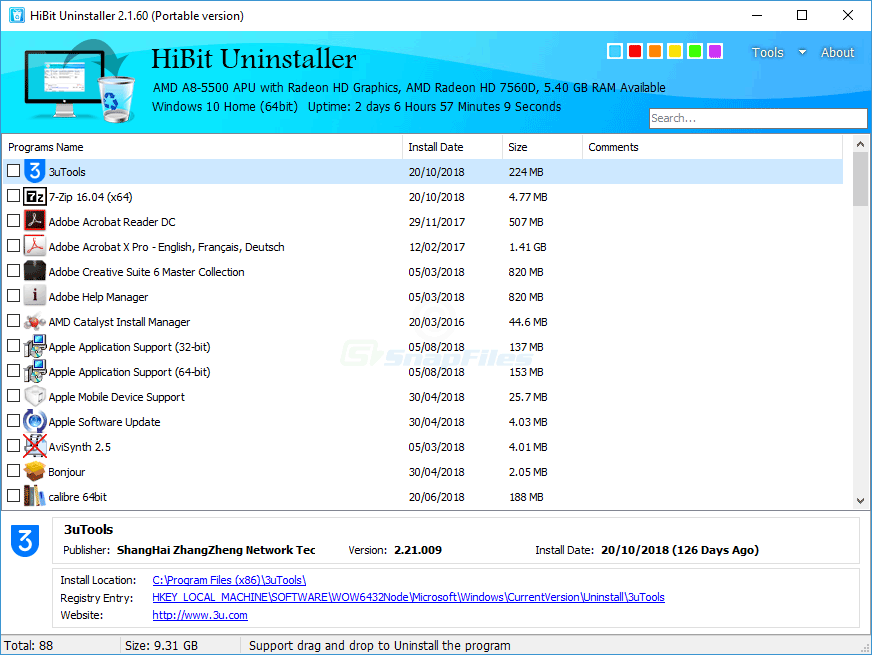
Uninstall & forced removal
Uninstall programs through the regular flow, or use forced removal when the entry is broken, the vendor uninstaller fails, or leftovers block a clean reinstall.
Windows uninstaller & cleanup
HiBit Uninstaller is a free Windows tool that helps you uninstall desktop software and Microsoft Store apps, hunt leftovers, and use handy extras like startup management and junk cleanup, all without replacing Windows’ own safety features.
02. Capabilities
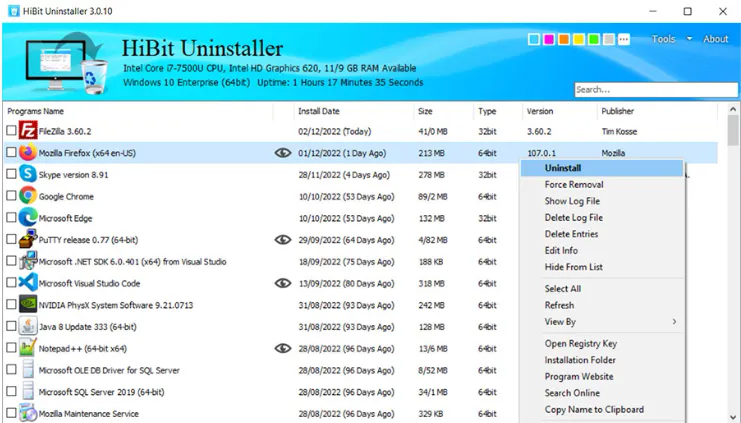
These capabilities are commonly highlighted in documentation and by long-time users. Features can vary by version, so verify file hashes when you can.
Uninstall programs through the regular flow, or use forced removal when the entry is broken, the vendor uninstaller fails, or leftovers block a clean reinstall.
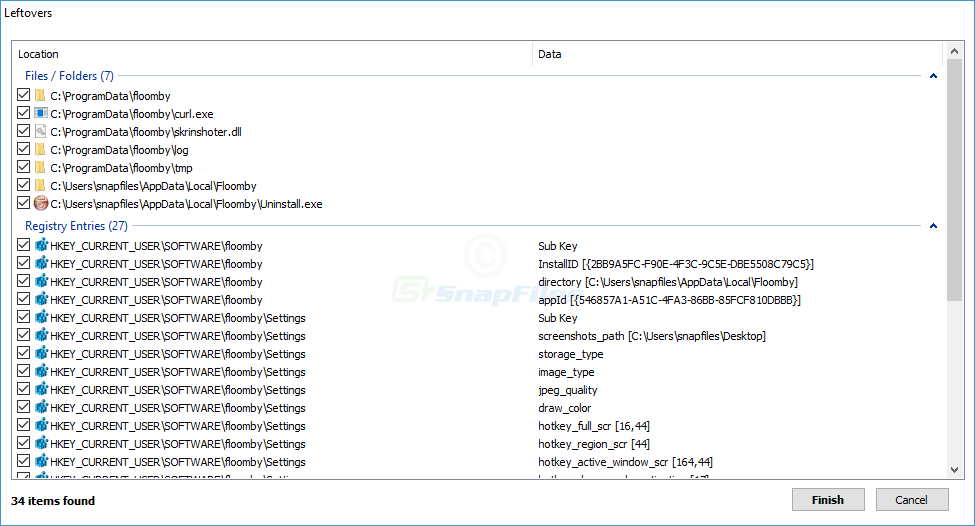
Scan for remnants after removal, clean temporary files, find empty folders, and delete invalid shortcuts, useful after migrations or failed upgrades.
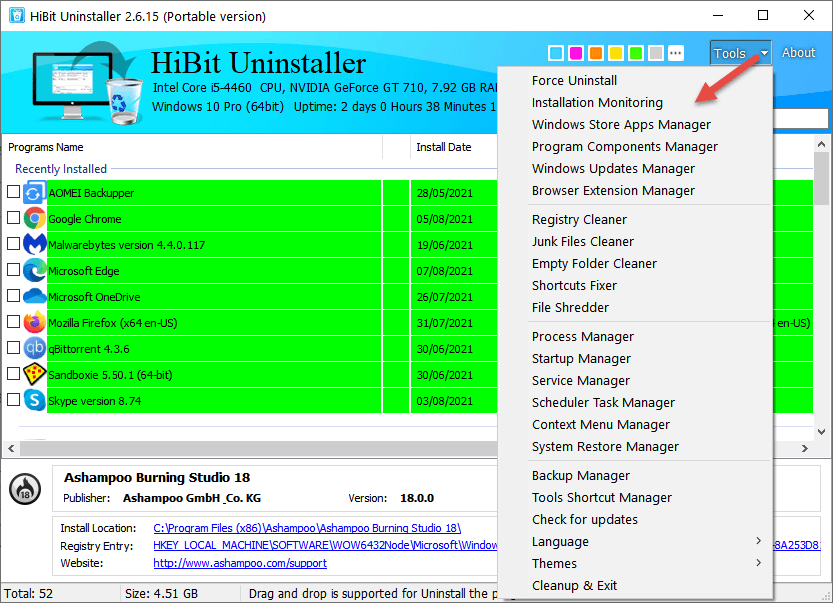
Many builds bundle helpers such as startup management, services overview, context-menu tools, and context-aware utilities, check your version’s module list.
03. Workflow
Simple, repeatable steps
Use the same careful order every time, especially before registry cleaning or uninstalling several apps at once. That habit prevents most avoidable mistakes.
Before bulk cleaning or registry tools, create a Windows restore point. It is the fastest rollback if something important is removed by mistake.
Prefer the standard uninstall first. If it hangs, retry in safe mode or use forced removal for that specific product. Avoid removing unknown entries.
After removal, reboot once, reinstall if needed, and run a targeted leftover scan only for the app you removed.
08. Get the build
Official gateway link, refreshed when you open this page. Free for Windows.
Ready to download
Opens the publisher download flow in a new tab. Choose installer or portable and the right CPU architecture when the site offers them.
Download HiBit UninstallerFilenames and versions change between releases. When the publisher lists a hash or file size, compare before you run the file. Scan with Windows Defender and read SmartScreen prompts.
On the publisher page, prefer the direct download link and keep a copy of the published file hash when available.
Scan with Windows Defender. If SmartScreen or your AV flags something unexpected, stop and re-verify the source before executing.
09. Deep library
The blocks below expand on uninstall hygiene, Windows behaviour, and edge cases. They are educational notes, not step-by-step commands for every PC. Adapt each idea to your hardware, backups, and comfort level.
Windows tracks installers through registration database entries. Deleting a program folder without uninstalling often leaves services, drivers, and registry hooks behind, use the uninstaller path first, then targeted cleanup.
Some apps install under %LOCALAPPDATA% only. Removing the machine-wide copy might not touch the per-user payload; check both scopes before declaring victory.
When an MSI-based app fails, vendor documentation sometimes recommends verbose logging. Keep logs in a dedicated folder; they help support forums understand whether the failure is permission, missing payload, or a custom action.
If uninstall hooks crash Explorer or a filter driver blocks removal, Safe Mode reduces running agents. It is slower but narrows the conflict set, pair it with standard uninstall before forced removal.
Invalid shortcuts waste little disk space but clutter search. Dedicated shortcut cleaners flag broken targets; review the list, sometimes shortcuts point to network paths that are temporarily offline.
OneDrive, Dropbox, or Google Drive folders can mirror gigabytes of “deleted” app data. Unlink or pause sync before bulk cleanup so you do not fight automatic restores.
Steam, Epic, Battle.net, and others store titles on secondary drives. Uninstalling the launcher does not always remove game payloads, check each platform’s library management tools.
Kernel-level anti-cheat packages intertwine with boot drivers. Removing them out of order can cause boot loops, follow the game publisher’s removal guide and avoid generic “clean all” passes on unknown drivers.
Visual Studio workloads pull multiple gigabytes. Use the Visual Studio Installer to remove workloads cleanly; manual folder deletes often orphan shared MSBuild components other apps need.
Docker Desktop and WSL distros live outside classic “Programs and Features” mental models. Remove them through their own dashboards first, then revisit leftover virtual disks in their documented locations.
Manufacturer suites bundle monitor apps and fax services. Removing the driver from Settings → Printers might be safer than nuking entire OEM directories shared across devices.
Low-latency drivers sometimes persist as hidden devices in Device Manager. Uninstall the application, reboot, then show hidden devices before deleting driver packages you recognize.
Trial antivirus, updaters, and “help” apps differ by laptop brand. Research each title; some utilities control fan curves or battery health and should stay until you read the trade-offs.
Features like Hyper-V, WSL, or .NET frameworks toggle through Settings or DISM. Third-party uninstallers do not replace those switches, mixing approaches can confuse component state.
The side-by-side cache is not a junk folder. Aggressive manual deletion breaks servicing. Use built-in cleanup tools and patience, disk reclamation belongs to Windows maintenance, not random folder wipes.
If Windows logs you into a temporary profile, stop uninstall sprees, fix profile loading first or you risk editing the wrong registry hive and losing user data.
System File Checker and DISM repair Windows images, not third-party apps. Run them when uninstalls coincide with OS instability, not as a weekly hobby.
Queue a handful of removals, reboot between batches, and watch Event Viewer for errors. Mass silent uninstalls are faster on paper and messier in reality when dependencies collide.
Before removing Chromium-based browsers, sync or export bookmarks, extensions, and saved passwords. Profile folders can be large, decide whether to archive or delete intentionally.
Screenshot or export license keys for paid software before removal. Some vendors tie activations to hardware fingerprints, reinstalling later may require deactivation first.
Apps register tasks under Task Scheduler for updates and telemetry. After uninstall, stray tasks may fail loudly in logs, prune only entries tied to removed products you can name.
Stopping a service shared by multiple apps breaks unknown dependents. Document service display names and startup types before aggressive cleanup sessions.
Shell extensions add right-click entries. Removing the parent app sometimes leaves stale handlers; specialized shell tools list extensions with publisher info, verify before disable.
Installers launched from slow or disconnected shares can leave half-written caches. Prefer local copies of installers when possible, especially on laptops that change networks often.
Disk encryption is unrelated to uninstallers but matters before partition editors or dual-boot experiments. Store recovery keys outside the machine you are modifying.
Linux or second Windows installs register boot managers. Removing OS folders from Explorer does not clean EFI variables, use OS-specific tooling to avoid unbootable systems.
Uninstallers may stage temporary payloads. Free several gigabytes on the system volume first; NTFS compression is not a substitute for breathing room.
Managed devices may block portable tools or require software catalog installs. Running elevated uninstallers on a locked-down PC can violate policy, ask IT before “cleanup crusades.”
Some uninstall paths demand elevation; others rewrite user hive keys only. If UAC prompts fail silently, check whether you are removing per-user packages under a different account.
Portable distributions may not appear in classic lists. Track the folder, any shell integrations they added, and whether they registered file associations manually.
Throughput and latency usually hinge on storage health, RAM headroom, thermal limits, and background malware, not the hundredth megabyte of temp files. Measure before and after with consistent workloads.
Quarterly reviews beat frantic weekend purges: update drivers deliberately, prune unused languages, archive old projects, and document what each installed app is for.
After any aggressive session, reboot cold, launch your critical apps, run a quick Windows Update check, and confirm backups still run. Peace of mind beats raw uninstall counts.
10. Contrasts
| Approach | Strength | Risk |
|---|---|---|
| Vendor uninstaller / Settings | Runs documented scripts, handles services, updates metrics. | May leave marketing telemetry if vendor ships it by design. |
| Third-party uninstaller (e.g. HiBit-style) | Centralized list, forced paths, leftover scans after failure. | Powerful actions need judgment, avoid “remove everything unclear.” |
| Manual folder delete | Fast when the app is a single portable tree you understand. | High chance of orphaned drivers, services, and broken COM hooks. |
11. Reality check
Myth
“Empty registry” equals a healthy PC.
Windows and apps constantly touch the registry. Chasing “zero orphan keys” wastes time and risks breaking seldom-used but legitimate entries.
Fact
Targeted repair beats broad scraping.
Fix the product you removed, verify stability, then stop. Incremental changes are easier to roll back than a aggressive sweep.
Myth
“Latest uninstaller build fixes everything.”
New versions add features and compatibility but cannot fix corrupted Windows installs or failing disks. Update tools after you trust the source, not as a substitute for hardware checks.
Fact
Backups beat bravado.
Image backups or file history snapshots turn scary removals into reversible experiments.
12. Cadence
13. More questions
14. Terms
ARP
Add/Remove Programs: the classic catalog of registered installers.
MSI
Microsoft Installer packages with standardized install/uninstall tables.
UAC
User Account Control prompts that gate elevation to administrator rights.
COM
Component Object Model registrations that let apps share features and file previews.
EFI / UEFI
Firmware-level boot entries separate from Windows file trees.
WSL
Windows Subsystem for Linux: optional subsystem with its own lifecycle.
15. Second wave
A separate batch of topics, different angles from the first library. Still educational; verify against your environment before acting.
Removing the IDE does not delete every venv folder you created in project trees, those live beside your code. Prune environments per project, not only from “Apps”.
Data-science stacks duplicate gigabytes across base and named envs. Use the conda tooling to remove envs cleanly before deleting install roots by hand.
JavaScript tooling caches and global binaries accumulate silently. After uninstalling Node, sweep user-level package folders only when you know nothing else references them.
Creative Cloud uses a hub installer with shared components. Removing one app from a suite may still leave shared runtimes, follow Adobe’s documented order.
Microsoft 365 installs stream from Click-to-Run. Use the Office deployment tool or Settings for repair/remove, avoid deleting Office16 folders blindly.
Machine-wide Teams installers differ from per-user new Teams. Confusing the two leaves background updaters running, check both Settings and the publisher’s removal notes.
Meeting clients install Outlook add-ins and virtual devices. Remove the app first, then verify audio devices and COM add-ins lists for stragglers.
Corporate VPNs inject routes and DNS. Uninstall from vendor media, reboot, and confirm network adapters return to defaults before deleting driver stores.
Browser extensions and desktop shells sync separately. Sign out, export if needed, then uninstall, avoid orphan extensions that still autofill.
Streaming stacks add virtual devices that confuse default playback devices. Remove apps, reboot, then re-test exclusive mode in sound settings.
Portable plugin DLLs can live outside Program Files. Note third-party filters before removal, they may register capture hooks.
Imaging software installs filter drivers. Use the product’s uninstaller so snapshots and scheduled jobs stop cleanly, check services afterward.
Business policies can re-push clients via MDM. Local uninstall might be temporary, coordinate with admins if the app respawns after reboot.
SolidWorks-style suites scatter license servers and massive caches. Use vendor uninstall and license return workflows before folder deletes.
Engine installers add SDKs and platform support packs. Removing one version might break projects, archive engines you still open.
Multiple JRE/JDK versions often coexist for legacy apps. Remove only versions you have validated as unused, corporate applets may still need an older JRE.
Developers install many targeting packs. If build servers or IDEs still build for a framework, keep the pack, even if disk usage hurts.
Type-2 hypervisors install virtual adapters and services. Uninstall, reboot, confirm virtual switches are gone before editing NIC bindings.
AnyDesk / TeamViewer / Parsec add quick-access services and firewall rules. Document rule names so you can verify removal in Windows Defender Firewall.
RGB, fan control, and overclocking tools depend on vendor services. Removing them without reinstalling chipset drivers can leave sensors polling errors.
Document scanners ship Abbyy-style OCR. Twain/WIA drivers persist in Device Manager, use vendor cleanup utilities when available.
Profiles hold mail stores outside Program Files. Uninstalling the app might leave gigabytes in AppData, archive mailboxes intentionally.
Residual shell integrations and firewall exceptions are common. After uninstall, review default app handlers for magnet links.
Third-party optimizers sometimes install alongside unrelated freeware. Prefer removing the entire suite from Programs list, then scan for scheduled upsell tasks.
Removing languages you never installed is usually safe; removing the display language you actively use breaks UI strings, stick to Settings → Time & language.
Font managers hook into Windows font services. Uninstall cleanly so font cache rebuilds do not corrupt previews in Office and browsers.
Keep a simple text log of what you removed and when. Future you (or support) can trace regressions without guessing which session deleted a runtime.
16. Decisions
| Situation | Try first | Escalate to |
|---|---|---|
| Entry missing but folders remain | Reboot, rerun vendor repair if available. | Targeted leftover scan for that publisher only. |
| BSOD during uninstall | Boot to recovery, uninstall in Safe Mode. | Restore point / driver rollback, avoid mass cleaner. |
| UAC loop or silent failure | Another admin account test, event logs. | Vendor MSI log analysis or IT policy check. |
| Network stack odd after VPN removal | Adapter reset, DNS flush (non-destructive). | Reinstall VPN briefly, then clean uninstall. |
| Disk still full after “huge” uninstall | Storage sense, empty recycle, cloud placeholders. | TreeSize-style audit, find real large folders. |
| App reappears after reboot | Check scheduled tasks & MDM policy. | Identify parent suite or Windows component. |
17. Caution
18. Tactics
Remove trial games, duplicate PDF printers, old browser betas you no longer open, and startup entries you can map to a known vendor. Empty Downloads of stale installers after you archive what you need.
Purging “unused” runtimes, codecs, or drivers shared by multiple apps; aggressive registry sweeps; deleting ProgramData folders without tracing owners. Pair deep cuts with backups and narrow scope.
19. Even more Q&A
20. More terms
DISM
Deployment Image Servicing and Management, repairs Windows component store from trusted sources.
SID
Security Identifier, unique per user account; some paths and permissions are SID-specific.
WIM
Windows Imaging Format, used in deployment and offline servicing, not casual deletion.
C2R
Click-to-Run streaming install used by Microsoft 365 apps.
WUA
Windows Update Agent, the client stack that applies cumulative updates.
Profile folder naming
Renamed accounts can leave confusing folder names, do not rename system profile folders casually.
Filter driver
Kernel module that intercepts I/O, used by AV, backup, and some uninstallers; order matters.
Shell namespace
Virtual folders like “This PC” entries, extensions can register deep hooks.
MDM
Mobile Device Management, policies can reinstall or block removals on managed PCs.
WinRT / UWP
Runtime model for many Store apps, different uninstall paths than classic Win32.
PATH (environment)
List of directories searched for executables, CLI tools often leave PATH entries behind.
Shadow copies
Previous versions / restore points rely on Volume Shadow Copy, do not disable blindly for a few megabytes.